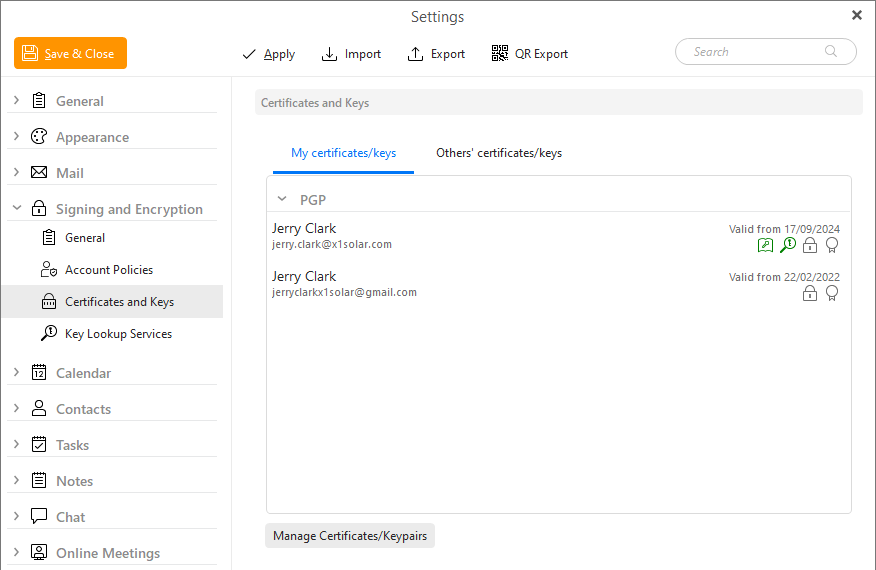
In this section you can import and manage all S/MIME certificates and PGP keys.
My certificates/keys tab will show your certificates and keys, those you can use to Sign and Encrypt your messages.
Others' certificates/keys tab will show Other certificates of your recipients and senders. You can import these manually or directly from a received message (if the original sender attached their public key in their message).
Click the 'Manage Certificates/Keypairs' button to open the 'Manage Certificates/Keypairs' window, where you can add, remove and manage your certificates and keys.
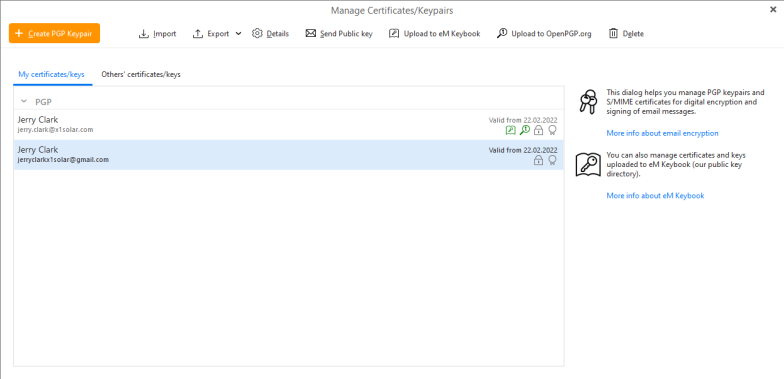
With this option you can create your own PGP keypair inside eM Client.
All you need to do is select the mail address/alias you want to generate the keypair for and input your own data.
eM Client currently generates PGP keypairs with no Expiration date.
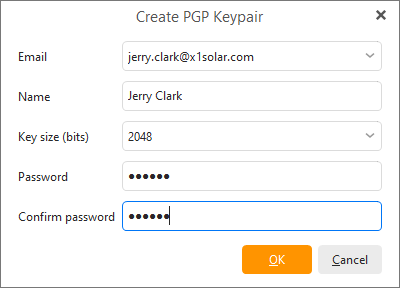
Make sure to remember your password as you will need it to encrypt and sign your messages.
With this option you can import your existing Certificates and Keys.
If the imported file contains only a Public key/certificate it will be saved in the Others' certificates/keys section.
If the file also contains your own Private key/certificateit will be imported into the My certificates/keys section.
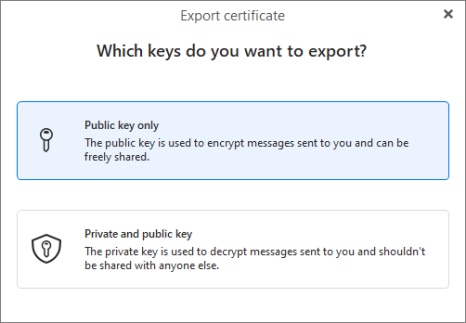
With this option you can export your keys, either just the Public key or the whole keypair.
Clicking the Details button will open the following information window:
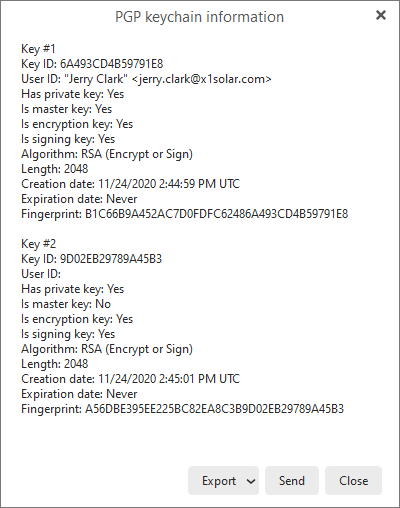
Here you can see all the information about your certificate/key but also Export them or Send your public key to a contact with whom you wish to converse via encrypted messages in the future.

You can export the whole keypair or just the public key into an .ASC file.
You can also right-click the certificate/key using the right mouse button to open the Details or access its features.
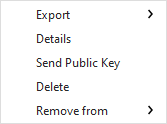
With this button you can quickly just send the public key of the selected certifiate or keypair to the recipients.
With this option you can manually upload your public PGP key to the What is eM Keybook? service. If the key has already been uploaded, this button changes to the removal option instead.
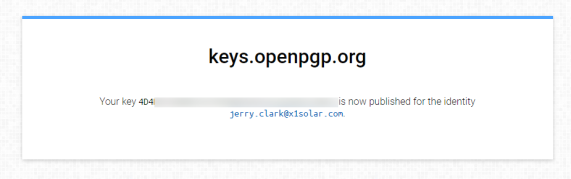
With this option you can manually upload your public PGP key to the https://keys.openpgp.org/ service. If the key has already been uploaded, this button changes to the removal option instead.
When you add your key to OpenPGP.org you will get this confirmation window in your browser:
Clicking the Delete button  will remove the certificate/key from eM Client.